Instagram Photo Downloader – Save Photos in HD, Free

Save Instagram photos and pictures to your camera roll or gallery — free, no watermark, no login. Works on iPhone, Android, and PC instantly.

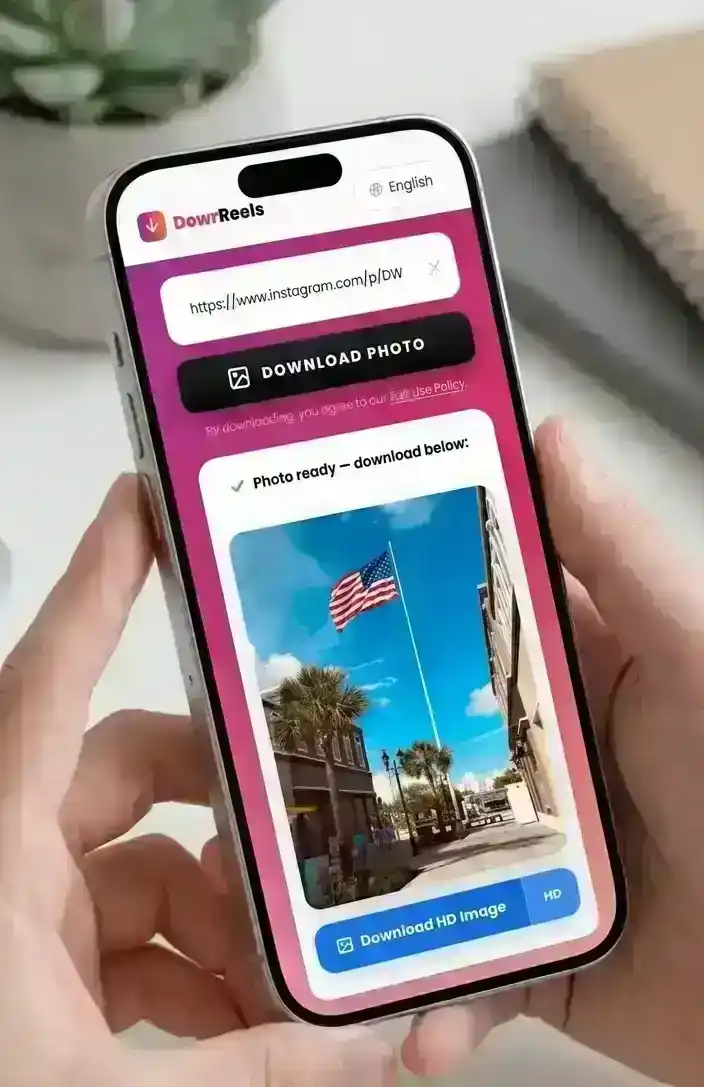
Photo ready — download below:

Preview of the downloaded Instagram photo
Preview of the Instagram photo ready for download
  • HD Original Quality
  • No Watermark
  • No Login Required
  • 100% Free

Save Instagram Photos Online Free — No Login, No App Needed

DownReels is a free Instagram picture downloader that works entirely in your browser. Paste any public Instagram post link and the image saves straight to your camera roll or gallery in seconds — no account, no app, no payment required.

Supports single posts, carousel albums, and multi-image galleries — use it to save pictures from Instagram or download any Instagram post from any public account. For stories use our Instagram Story Downloader. For videos try our Instagram Reels Downloader or Instagram Audio Downloader.

DownReels is not affiliated with, endorsed by, or sponsored by Instagram™ or Meta Platforms, Inc. We do not host any Instagram content — all media passes through to your device directly. All copyrights and trademarks belong to their respective owners.
What Is an Instagram Image Downloader & How It Works

An Instagram image saver is an online tool that retrieves the photo file from a public Instagram post and saves it directly to your camera roll or gallery. Instead of taking a screenshot — which reduces sharpness — you get the highest-quality version Instagram has stored.

Step 1 — Fetch. A secure request is sent using the public post URL you provided and the original image file is retrieved.

Step 2 — Extract. The highest-resolution version Instagram stores is identified and prepared for download — no additional processing or re-encoding is applied by this tool.

Step 3 — Deliver. The image file is sent directly to your browser and saved to your device.

  • Step 1Fetch
  • Step 2Extract
  • Step 3Deliver
  • Time< 3s

How to Download Instagram Photos from a Link (Step-by-Step)

3 simple steps — works on every device, no account needed.

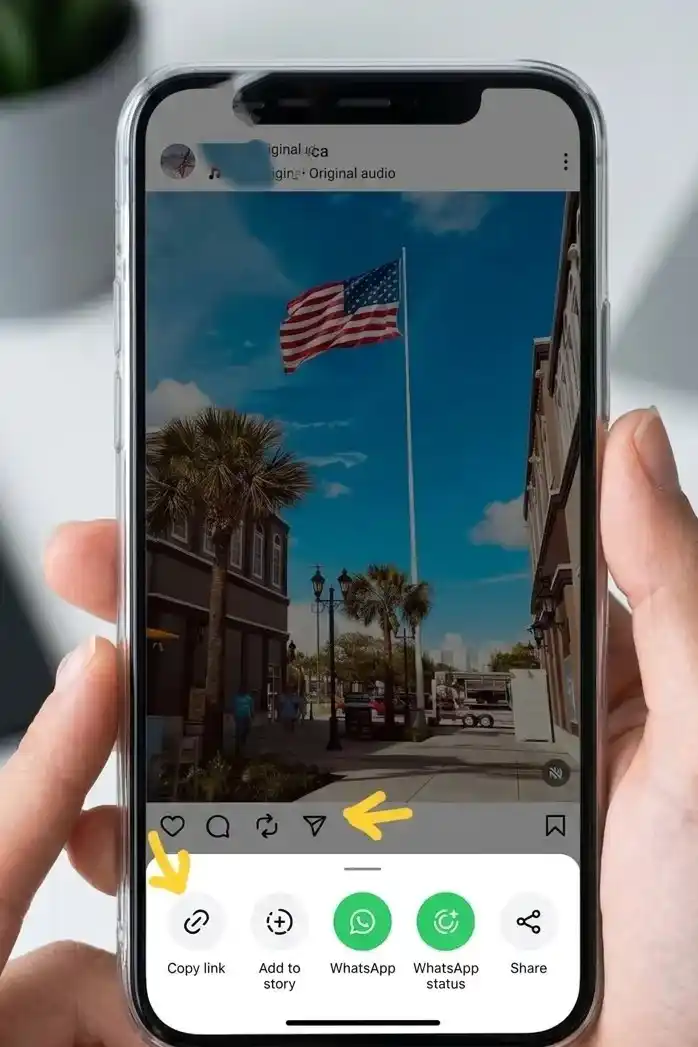
  1. Copy Instagram Post URL

    • Open Instagram on your phone or browser and find the photo you want to save.
    • Tap the three-dot menu (⋯) on the post, then tap Copy Link.
    • On desktop, click the post, then copy the URL directly from your browser address bar.
    Step 1 — iPhone showing Instagram post share menu with Copy Link option highlighted
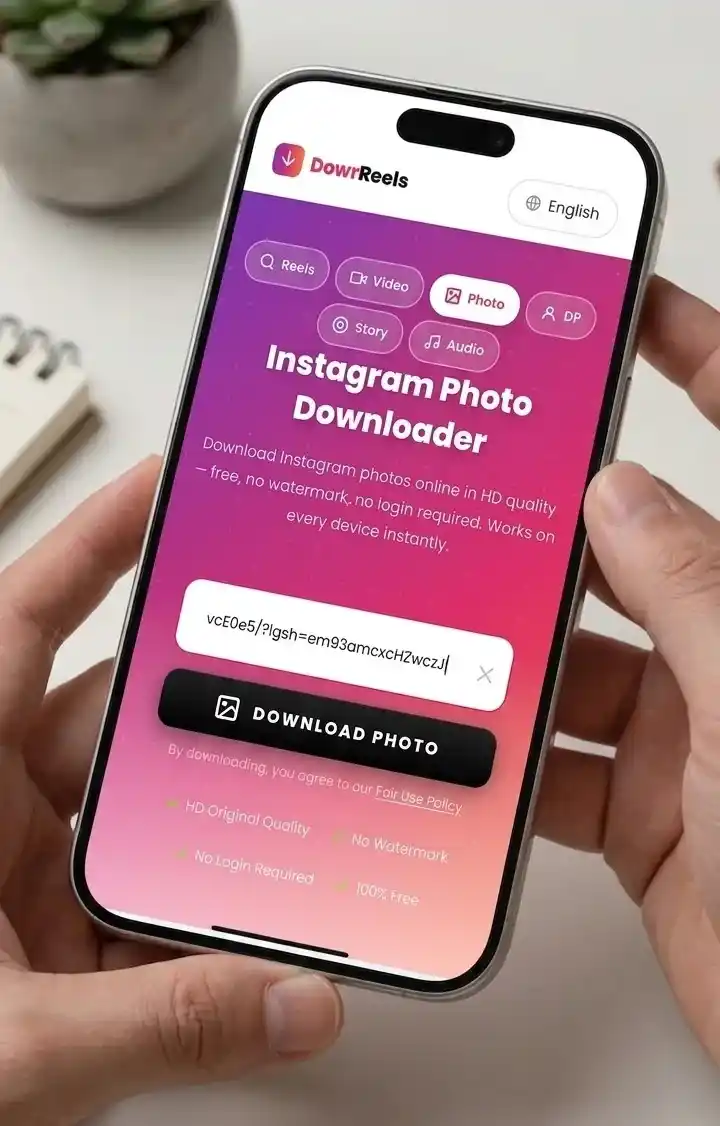
  2. Paste Link into Downloader

    • Come back to this page and tap the Paste button — the link fills in automatically from your clipboard.
    • Or tap inside the input box and paste manually with Ctrl+V (PC) or long-press → Paste (mobile).
    • The tool validates your link instantly. You will see a clear error if the link is not a valid Instagram URL.
    Step 2 — Hands holding iPhone showing DownReels photo downloader with Instagram link pasted
  3. Download Image Instantly

    • Click the Download Photo button and wait 2–3 seconds while we fetch the image.
    • The full-resolution image preview appears. Click the blue Download HD Image button to save it to your device.
    • For carousel and album posts, every image appears as a separate save button — download them all or pick only the ones you want.
    Step 3 — Hands holding iPhone showing DownReels result with Download HD Image button

Download Instagram Photos on Any Device (iPhone, Android, PC)

The same browser-based tool works identically on every platform — no app, no software.

Save Instagram Photos to Camera Roll on iPhone

Open Safari on your iPhone and visit downreels.com. Paste the Instagram post link and tap Download Photo. The image saves to your Files app. To move it to your Photos camera roll, tap and hold the file then tap Save Image — it appears in Recents instantly.

Save Instagram Photos to Gallery on Android

Open Chrome or any browser on your Android phone and visit downreels.com. Paste the Instagram post link and tap Download Photo. The picture saves straight to your Downloads folder and appears automatically in your Gallery app.

Download Instagram Pictures on PC or Mac

Open any browser — Chrome, Firefox, Safari, or Edge — on your computer and go to downreels.com. Paste the Instagram post link and click Download Photo. The picture saves instantly to your Downloads folder in full original resolution.

Download Instagram Photos in HD (Original Quality)

Downloaded photos are delivered in their original resolution — the highest-quality version Instagram stores on their servers. The image is retrieved without any additional processing or re-encoding on our side.

Instagram's maximum image resolution is 1080x1350 pixels for portrait posts and 1080x1080 for square posts. Photos are delivered in JPG format, which offers the best balance of quality and file size for photographs. The tool works across all modern browsers including Chrome, Safari, Firefox, Edge, and Opera on both desktop and mobile.

Instagram displays compressed previews inside its app, but the original full-resolution file is always preserved on their servers. A browser-based downloader retrieves that original — giving you far better quality than any screenshot method. Whether you want to save pictures from Instagram for offline viewing or download an entire Instagram post, the process takes under 3 seconds from any browser on any device.

  • QualityOriginal
  • FormatJPG
  • Max Size1080x1350
  • WatermarkNone

Instagram Photo Downloader Without Watermark

Many downloader tools overlay their own branding or logo on downloaded images. DownReels never modifies the image in any way. The file you receive is the original — untouched, unbranded, and without any added watermark or overlay.

We fetch the image directly from Instagram's content delivery network. No image processing happens on our side — the original file passes straight through to your device.

  • Our branding✕ Never
  • Overlays✕ None
  • Original file✓ Always
  • Editing✕ Zero

DownReels handles single pictures and multi-image carousel albums equally well — save one or save them all.

  • Carousel

    Download Carousel Posts from Instagram

    Instagram carousel posts can contain up to 10 images in a single post. DownReels detects carousel posts automatically. When you paste a carousel link, every image in the album appears as a separate download button — so you can save them all individually or pick only the ones you want.

  • Album

    Save All Instagram Album Photos at Once

    Each picture in a carousel album is available at its original full resolution. Paste the Instagram post link once and every image in the album is ready to save — no need to navigate between slides or take multiple screenshots.

Is Instagram Photo Downloading Safe and Private?

Yes, when you use a browser-based tool that does not require your Instagram login. DownReels does not ask for your Instagram username, password, or any personal account information. Only the public post URL is needed to fetch the image.

We do not store or share personal download histories, and we do not sell or rent your personal information to third parties. All processing happens over a secure HTTPS connection, and your downloaded images are fetched from Instagram's servers and delivered to your device without being stored on ours.

Any downloader that asks for your Instagram password is a security risk. DownReels will never ask you to log in or provide any account details of any kind.

  • Login requiredNever
  • Password askedNever
  • User historyNot stored
  • Secure HTTPS✓ Always

Features of This Instagram Photo Downloader Tool

  • Original HD resolution — up to 1080x1350 pixels
  • No watermark — clean original JPG file
  • Supports single photos, carousels, and albums
  • Works on iPhone, Android, PC, Mac
  • Compatible with Chrome, Safari, Firefox, Edge, Opera
  • Save to camera roll or gallery — iPhone, Android & desktop
  • Download Instagram carousel and album posts in one go
  • Typical processing time: under 3 seconds

Why This Is the Best Instagram Photo Downloader

Compared to screenshots, browser extensions, and other tools — here is what makes DownReels different.

  • Better Than Screenshots — Full Resolution Every Time

    Screenshots are capped at your screen resolution and lose sharpness. Downloading through a browser-based tool retrieves the original file the creator uploaded — so you always get the sharpest possible version regardless of your screen size.

  • No App Install — Works Instantly in Any Browser

    Other downloaders require an app download, a Chrome extension, or an account. DownReels runs entirely in your browser tab — paste the link, click download, done. Works the same on Safari, Chrome, Firefox, and Edge across every operating system.

  • Private by Design — No Account, No Tracking

    Many free tools ask for Instagram logins or require account sign-up. DownReels requires neither. Just paste the link and the picture saves straight to your camera roll or gallery — no sign-up, no credentials, no personal data collected.

Where Are Instagram Photos Saved After Download?

Download locations vary by device — here is exactly where to find your saved photos.

Find Downloaded Photos on Android

On Android, downloaded images go to your Downloads folder by default. Open your Files app, tap Downloads, and you will find the image there. It also appears automatically in your Gallery app under the Downloads album. You can move it to any other album from there.

Save Location on iPhone Gallery

On iPhone, downloaded images save to your Files app in the Downloads folder. To move it to your Photos library, open Files, tap and hold the image, then tap Save Image. It will appear in your Photos app under Recents immediately.

Download Folder on Desktop

On Windows and Mac, all browser downloads save to your Downloads folder by default. Open File Explorer (Windows) or Finder (Mac) and navigate to Downloads. The file name begins with DownReels_Photo_ followed by a timestamp so it is easy to find.

Instagram Photo Downloader FAQs

Everything you need to know about downloading Instagram photos.

  • Open Instagram, tap the three-dot menu on any public post, and tap Copy Link. Then paste that link into an online Instagram picture downloader like DownReels and tap Download. The photo saves directly to your camera roll or gallery — no app installation needed on any device.

  • Yes. DownReels retrieves the highest-quality version Instagram stores, typically up to 1080x1350 pixels for portrait posts and 1080x1080 for square posts. This is significantly sharper than any screenshot taken on a phone screen.

  • Yes. The tool is completely free with no registration, subscription, or payment of any kind required. You can save as many Instagram photos as you need without creating an account or installing anything.

  • No. Only photos from public Instagram accounts can be accessed. Private account content is protected by Instagram and cannot be downloaded by any external tool without the owner's login credentials, which are never requested.

  • Downloaded photos save to your device default Downloads folder. On Android they also appear automatically in the Gallery app. On iPhone the file saves to the Files app — open Files, long-press the image, and tap Save Image to move it to your Photos camera roll. On desktop the file lands in your Downloads folder.

  • Yes, as long as the tool does not ask for your Instagram password. DownReels only needs the public post URL — no account credentials are ever required. If a downloader asks you to log in to Instagram, leave immediately as that is a phishing risk.

  • Look for a tool that works in your browser without installation, requires no Instagram login, downloads photos in their original JPG resolution, supports carousel albums, and saves directly to your camera roll or gallery on any device.

  • Saving public Instagram pictures for personal offline use is generally acceptable. The key rule is: the copyright always belongs to the creator. Never repost, sell, or use someone else's photo in ads or commercial content without asking them first — even if you downloaded it legally.

*/ /* Step number counters */ .photo-steps { counter-reset: photo-step; } .photo-steps .step-card { counter-increment: photo-step; } .photo-steps .step-card h3::before { content: "Step " counter(photo-step) " — "; color: var(--pink, #E1306C); font-weight: 700; }